ParaView is an open-source visualisation software that can be used to view and analyse almost any data set. Often this is used to present scientific data in presentations or publications. Sometimes, you may want to create a visualisation that changes the camera and filter position in time.

It is possible to do this using the animation view in ParaView and I will outline the steps below. First, go to View -> Animation view.
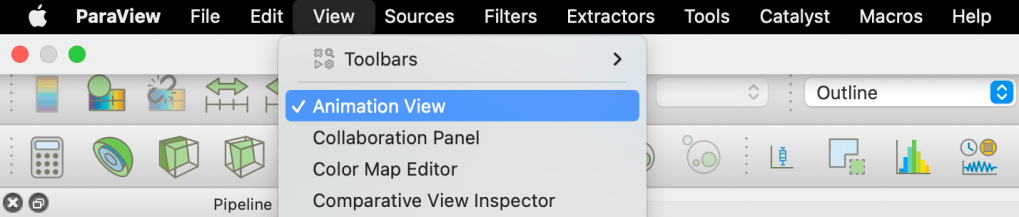
This opens up the possibility to time delay features of the objects and filters in the pipeline. An example of this revealing the presence of one phase in the 3D image:

In this example, we want to clip the red block in the x-direction by first applying a clip on the y-normal and setting the clip slice x-coordinate to 0.

At the animation view, the clip can then be selected and the clip type should be set to offset.

Next click the blue plus symbol to the left and it will add this feature to the animation view timeline. Double click the Clip1 below TimeKeeper1 which will reveal the option to change the limits of the offset amount:

In this instance, my domain had a maximum length of 70. This means that the clip will use a ramped interpolation from 0 to 70 through the structure over a time of 0 to 1 with 100 frames. You can choose the length of the animation in times and the frame rate (by the number of frames) as shown below:

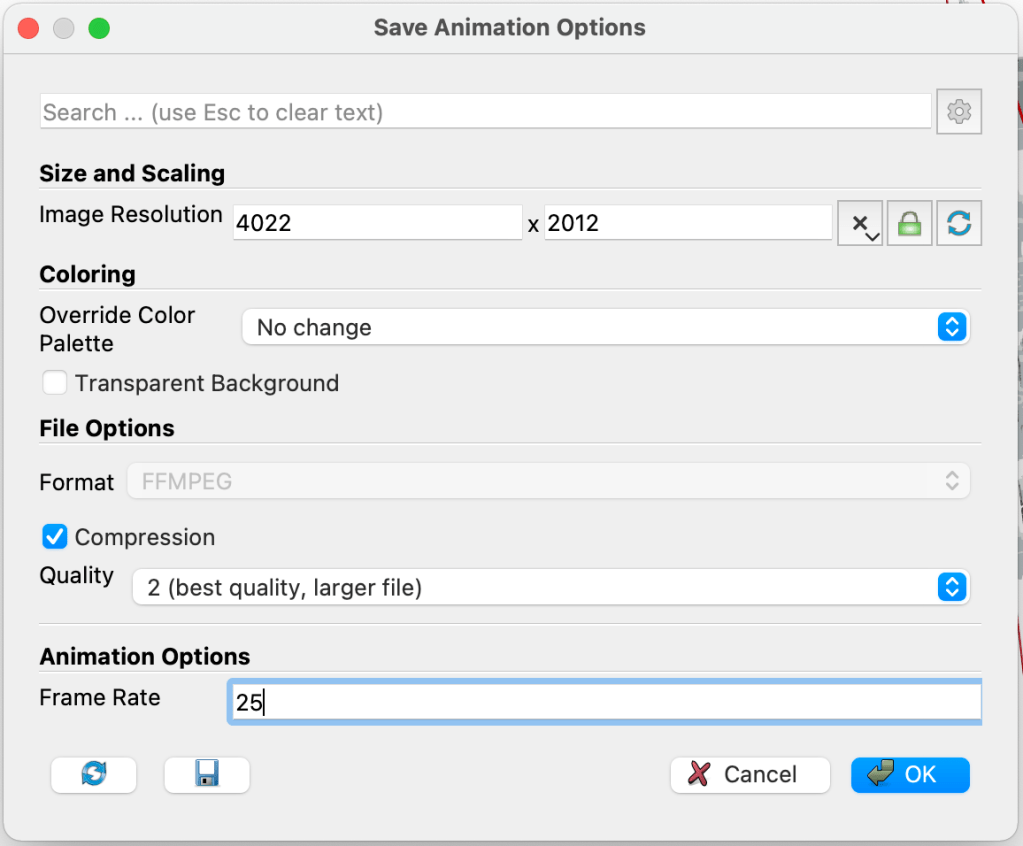
Run the animation to see that it has worked, then save the animation as .avi using: file -> save animation. For the animation options, I have 100 frames so setting a frame rate of 25 will produce a video that is 4 seconds long.
Wait for the animation to save and enjoy your new animation as shown at the top of this page. If you are interested in more content like this, please let me know.
 Daniel Niblett Research